
17 Proven Ways to Make Blender Render Faster
If you want to get the most out of Blender, learning how to make Blender render faster is one of the most valuable skills you can develop as a 3D artist. Faster rendering means less time waiting for progress bars and more time focused on what really matters: modeling, animation, lighting, and refining your creative ideas.
Keep reading to discover practical techniques that can significantly reduce your render times without sacrificing the quality of your final output.
Why Blender Render Times Can Be Slow
Rendering is the process of calculating how light interacts with every object and surface in your scene. Blender must determine how materials reflect light, how shadows are cast, how transparent surfaces refract, and how the camera captures the final image.
These calculations require significant processing power, especially in detailed scenes. Several factors commonly increase render times in Blender:
- High polygon counts
- Large texture files
- Complex lighting setups
- Glossy reflections
- Transparent or refractive materials
- Volumetric effects such as fog or smoke
- Motion blur
- Depth of field
- High sample counts
When multiple demanding effects are combined in a single project, render times can increase quickly.
1. Choose the Right Blender Render Engine
Blender includes two primary render engines: Eevee and Cycles. Selecting the right engine for your project can significantly impact rendering speed.
Eevee
Eevee is Blender’s real-time render engine. It uses techniques similar to those of modern game engines, enabling it to produce high-quality visuals at significantly faster speeds. For stylized projects, product visualizations, motion graphics, and many animations, Eevee often delivers excellent results while keeping render times low.
Cycles
Cycles is Blender’s physically based renderer. It is designed for realistic lighting, reflections, shadows, and global illumination. While Cycles generally produces more accurate and cinematic results, it also requires far more processing power. Fortunately, Cycles offers numerous optimization settings that can substantially improve rendering performance.
2. Enable GPU Rendering
One of the most effective ways to improve render speed is to use your graphics card instead of relying entirely on your CPU. Modern GPUs are specifically designed to handle thousands of calculations simultaneously, making them highly efficient for rendering workloads.
To enable GPU rendering in Blender:
- Open Preferences.
- Navigate to the System tab.
- Select your GPU under Cycles Render Devices.
- In Render Properties, choose GPU Compute.
For many users, this single adjustment can dramatically reduce render times.
3. Lower Your Sample Count
Samples determine how many calculations Blender performs for each pixel in the image. Higher sample counts reduce noise and improve image quality, but they also significantly increase render time. One of the most common mistakes is using far more samples than a scene actually requires.
Start with lower sample values and gradually increase them only if necessary. In many situations, the visual difference between medium and extremely high sample counts is minimal. Reducing the number of samples is especially effective when combined with Blender’s denoising tools.
4. Use Blender’s Denoising Features
Blender includes powerful denoising technologies such as OpenImageDenoise and NVIDIA OptiX. Denoising automatically removes grain and noise from rendered images, allowing you to use fewer samples while still producing smooth, high-quality results. For many scenes, enabling denoising provides one of the best balances between render speed and image quality.
5. Simplify Light Paths
In Cycles, light bounces determine how many times light can reflect throughout the scene. Higher bounce values increase realism, but they also require additional calculations. Reducing the following settings can significantly improve rendering performance:
- Max Bounces
- Diffuse Bounces
- Glossy Bounces
- Transmission Bounces
In many projects, lowering these values produces little noticeable difference in the final image.
6. Optimize Your Lighting Setup
Lighting plays a major role in both visual quality and render speed. Scenes with too many light sources often render much more slowly than they need to. In many cases, an HDRI environment combined with one or two carefully placed lights is sufficient.
You can also improve performance by disabling shadows on lights that contribute very little to the scene. Carefully optimized lighting not only speeds up rendering but can also produce a cleaner, more visually appealing result.
7. Reduce Texture Resolution
Large texture files consume memory and increase render times. Not every object in your scene requires ultra-high-resolution textures. While 4K or 8K textures may be useful for close-up shots, background objects often look perfectly acceptable with much smaller resolutions. Reducing unnecessary texture sizes can improve both render speed and overall scene performance.
8. Use Adaptive Sampling
Adaptive Sampling allows Blender to focus processing power on noisy areas of the image while spending less time rendering cleaner regions. Instead of applying the same number of samples across the entire frame, Blender intelligently adjusts sampling where it is needed most. This feature can significantly reduce render times while preserving image quality, particularly in scenes with complex lighting.
9. Limit Volumetric Effects
Volumetrics such as fog, smoke, and atmospheric lighting can create stunning visuals, but they are also among the most demanding effects in Blender. If your scene includes volumetrics, consider:
- Lowering the step rate
- Reducing volumetric resolution
- Limiting the size of the effect area
Even modest adjustments can noticeably improve render times.
10. Optimize Scene Geometry
Heavy geometry impacts both viewport responsiveness and final rendering performance. Some effective optimization techniques include:
- Using modifiers efficiently
- Applying subdivision only where necessary
- Removing hidden geometry
- Using lower-detail models for distant objects
- Instancing repeated assets
Many scenes contain far more geometric detail than the camera will ever display.
11. Use Render Regions During Testing
When adjusting lighting, materials, or shaders, it is often unnecessary to render the entire frame. Blender’s Render Region feature allows you to render only a selected portion of the image. This provides faster feedback while testing changes and can greatly speed up the look-development process. It is one of the simplest workflow improvements available.
12. Disable Unnecessary Effects During Previews
Features such as motion blur, caustics, and depth of field add realism, but they also increase render times. During test renders, it is often more efficient to temporarily disable these effects. Once the scene is finalized, you can enable them again for the final render. This approach allows you to iterate more quickly throughout the creative process.
13. Render Preview Images at Lower Resolutions
Preview renders rarely need full output resolution. Rendering at 50% or 75% resolution allows you to evaluate composition, lighting, and materials much faster. Once everything looks correct, you can switch back to your final resolution settings for production rendering. This is especially useful when working on animations or complex environments.
14. Use Instances for Repeated Objects
Scenes that contain repeated assets, such as trees, rocks, furniture, or vegetation, can become extremely heavy if every object is unique. Using linked duplicates, collection instances, or geometry nodes allows Blender to reuse the same data efficiently. Instancing significantly reduces memory usage and improves rendering performance in large scenes.
15. Keep Blender Updated
Each new Blender release often includes performance improvements, rendering optimizations, and GPU enhancements. Using the latest stable version of Blender can provide noticeable speed increases, particularly when working with Cycles. In addition to faster rendering, updates frequently improve stability and compatibility with modern hardware.
16. Close Unnecessary Applications
Rendering places heavy demands on your computer’s CPU, GPU, and memory resources. Closing unused applications before rendering can free up valuable system resources and improve Blender’s performance. This is particularly important when working on large scenes or high-resolution animations.
17. Use a Cloud Render Farm
Even with careful optimization, some Blender projects still require more rendering power than a single workstation can provide. High-resolution animations, detailed simulations, and large production scenes can still take many hours or even days to complete locally. Cloud rendering services solve this problem by distributing rendering tasks across multiple high-performance machines.
Render Pool is a cloud rendering service that supports Cycles and Eevee, making it a practical option for Blender artists working on animations, visual effects, and high-resolution scenes. The platform requires no complicated setup, allowing users to upload projects directly from a browser and begin rendering immediately.
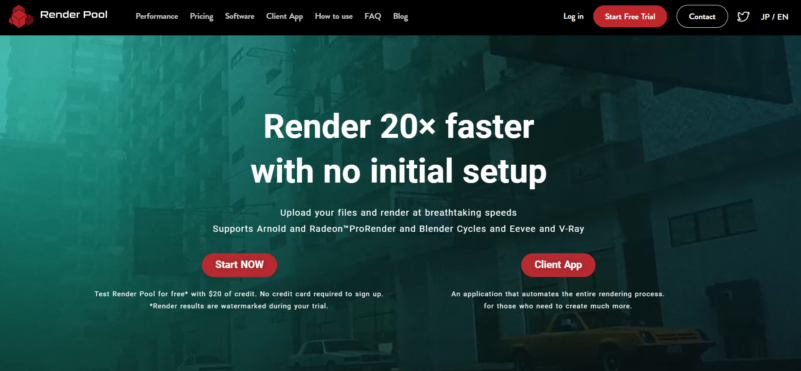
By distributing render jobs across high-performance cloud servers, Render Pool can reduce render times by up to 20 times faster compared to rendering on a local workstation. This also frees up local hardware for modeling, compositing, and other creative tasks. New users can test the service with a free trial that includes $20 in rendering credits.
Which Blender Optimizations Matter Most?
If you want the greatest improvement in render speed, start with these optimizations:
- Enable GPU rendering
- Lower sample counts
- Use denoising
- Enable adaptive sampling
- Reduce unnecessary light bounces
- Optimize textures and geometry
- Limit volumetrics and heavy effects
These changes alone can reduce render times substantially in many Blender projects.
Faster Blender Rendering Improves Your Workflow
Learning how to make Blender render faster is not simply about using more powerful hardware. In many cases, smart optimization techniques can dramatically improve efficiency without sacrificing visual quality. By reducing unnecessary complexity, reducing the number of samples, enabling denoising, and optimizing lighting and geometry, you can create high-quality renders much more efficiently.
And when your projects require more performance than your local machine can handle, cloud rendering services such as Render Pool provide an effective way to scale your rendering capacity and complete projects faster. Ultimately, faster rendering means less time waiting and more time focused on creating exceptional 3D work.