How to Render in Blender: Tips, Engines, and Speed
At some point in every Blender project, the scene is modeled, the camera is positioned, the lighting feels right, and the materials look convincing in the viewport. After hours or even days of work, the artist reaches the quiet moment of pressing the Render button.
For beginners, rendering may seem like simply turning a 3D scene into a 2D image. But experienced users know it is where every creative decision, subtle or deliberate, is tested. Lighting, textures, reflections, and shadows reveal their true impact. Rendering makes a digital scene feel real.
Understanding Rendering in Blender
At its core, rendering is a translation process. Blender calculates how light travels through a scene, accounting for geometry, materials, lighting, camera settings, and environmental data. Every light bounce, reflection, and shadow is simulated according to physical rules.
The software then converts all of this information into pixels. The final image is the result of millions of mathematical calculations. But for artists, rendering is less about math and more about storytelling, mood, and realism. It is the bridge between creative intent and the final visual frame.
Choosing the Right Rendering Engine: Cycles vs. Eevee
One of the first decisions in Blender is selecting a rendering engine. Blender currently offers two primary options, each suited to different workflows:
Cycles
- Physically accurate lighting
- Slower rendering, but more realistic results
- Ideal for photorealistic scenes
Eevee
- Real-time rendering engine
- Extremely fast previews
- Best for stylized scenes, motion graphics, or quick iterations
Cycles simulates real-world light behavior with ray tracing, capturing accurate reflections, refractions, and shadows. Eevee approximates lighting for speed, producing visually appealing results in a fraction of the time. Choosing the right engine depends on the project’s goals: realism or efficiency.
Camera Setup: Framing Your Scene Like a Photographer
The camera is more than a viewpoint; it is a storytelling device. Small adjustments can drastically alter the final render.
- Focal length affects perspective. Longer lenses compress space, while wider lenses exaggerate distance.
- Depth of field guides the viewer’s attention, blurring background elements to highlight the subject.
- Camera tilt sets the emotional tone. Level cameras feel stable, while slight tilts can introduce tension or dynamism.
A well-placed camera ensures that the viewer sees the scene exactly as the artist intends.
Lighting: The Key to Cinematic Renders
Lighting is often the defining factor in a successful render. Even a highly detailed model can feel lifeless under poor lighting, while simple models can appear cinematic with thoughtful illumination. Blender offers several lighting approaches.
- HDRI environments for realistic natural lighting
- Area lights for soft, studio-style illumination
- Spotlights for dramatic highlights
- Emissive materials to make objects glow
Contrast is crucial. Flat lighting produces flat images, while high-contrast setups — bright highlights paired with soft shadows — introduce depth. A common starting point is the three-point lighting system borrowed from photography.
- Key Light: The primary source
- Fill Light: Softens shadows
- Rim Light: Separates the subject from the background
When using Cycles, samples control render quality. More samples produce smoother lighting and less noise, but also increase render time. Artists must balance quality and efficiency. Modern denoising tools in Blender reduce the need for extremely high sample counts, allowing for cleaner images faster.
Materials and Textures: Rendering Reveals the Truth
Rendering exposes the realities of materials. Surfaces that appeared convincing in the viewport may reveal flaws once rendered.
- Tiling textures may become obvious
- Roughness maps may lack variation
- Reflections may appear unnaturally perfect
Professional artists often add subtle imperfections, such as scratches on metal, fingerprints on glass, or slight color variations, to create realism. Perfectly uniform surfaces often read as artificial. Rendering is where materials either succeed or reveal areas for improvement.
The Importance of Scale
Scene scale directly impacts lighting and realism. Blender’s physics-based rendering assumes real-world measurements. Objects modeled at incorrect scales can produce unrealistic shadows and reflections.
For example:
- A table modeled ten times too large may cast overly soft shadows.
- A small, incorrectly scaled object may reflect light unnaturally.
Maintaining an accurate scale ensures believable lighting behavior and contributes to the scene’s overall realism.
Managing Complex Scenes and Render Times
High-resolution textures, detailed geometry, volumetric lighting, and complex materials increase render times. For animation projects, this effect multiplies. A 300-frame animation taking 10 minutes per frame requires 50 hours of rendering.
In such cases, cloud rendering services like Render Pool can provide powerful GPU resources, allowing artists to offload intensive workloads and focus on the creative process. External rendering solutions help scale rendering power without being limited by local hardware.
Output Settings: Resolution and File Formats
Before rendering, practical choices must be made regarding resolution and file format.
Resolution:
- Standard HD: 1920 × 1080
- High-resolution Displays: 2560 × 1440
- 4K Output: 3840 × 2160
File Format:
- PNG: High-quality, lossless
- JPEG: Smaller file size with minor quality loss
- EXR: High dynamic range format for professional pipelines and post-processing
Selecting the right combination ensures the final render meets both quality and practical requirements.
Final Thoughts on Rendering in Blender
Rendering is often thought of as a mechanical step, but in reality, it is where artistic decisions are tested and validated. Lighting determines mood. Materials reveal realism. Camera placement tells the story. Rendering is not simply about generating pixels; it is about translating creative intention into a tangible image.
When all elements align — lighting, materials, camera, and composition — the final render appears not as a calculation, but as a moment: a scene that feels alive, convincing, and complete.
Speed Up Your Rendering with Render Pool
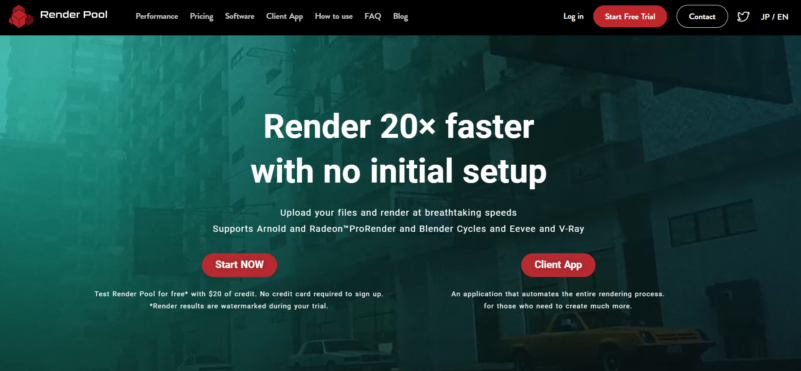
For projects that demand speed, scale, or extra computational power, cloud rendering services like Render Pool can transform your workflow. Render Pool lets you render up to 20 times faster with no setup required; simply upload your Blender files and let their high-performance servers handle the heavy lifting. It supports Blender Cycles, Eevee, Chaos V-Ray, Autodesk Arnold, and Radeon ProRender.
With flexible plans, free trial credits, and automated distributed rendering, Render Pool frees your local machine so you can focus on creativity instead of waiting. Start rendering faster and more efficiently today.