How to Render Animation in Blender: Complete Guide
Rendering an animation in Blender involves more than simply clicking a button. You need to prepare your scene, configure the render settings, and choose the right output format to produce a high-quality video. Whether you’re creating an animated short, a product visualization, or a complex 3D scene, understanding the rendering process can help you achieve better results. Keep reading to learn how to render animation in Blender, avoid common problems, and make your workflow more efficient.
Preparing Your Animation for Rendering
Before rendering an animation, it’s important to check your timeline and make sure Blender is set to render the correct frames.
Open the Output Properties panel and locate the frame range settings. Set the Start and End frames according to the length of your animation. For example, if your animation runs from frame 1 to frame 250, Blender will render those frames when you start the animation render.
The frame rate also determines how long your animation will play. A 250-frame animation at 25 frames per second lasts 10 seconds, while the same animation at 30 frames per second lasts approximately 8.3 seconds. Choose a frame rate that suits your intended project and playback requirements.
It’s also a good idea to review your animation before rendering. Play it in the viewport and check for unexpected movement, objects leaving the camera frame, awkward transitions, and lighting changes. Identifying these issues early can save considerable time during rendering.
Choosing the Right Render Settings
To select your preferred engine, open the Render Properties panel. Cycles suits projects that require realistic lighting, reflections, and detailed visual effects. Eevee, on the other hand, offers faster rendering and suits projects where speed and responsiveness matter.
The best choice depends on your animation’s visual style, scene complexity, available hardware, and deadline. Testing both engines on a representative frame can help you determine which option works best for your project.
Next, open Output Properties and configure the resolution. Full HD (1920 × 1080) is a common choice for online videos and general presentations. Higher resolutions may suit professional visualizations and large displays, but they require more rendering time and storage space.
If you’re still developing your animation, consider using a lower resolution for preliminary renders. You can increase the resolution when you’re ready to produce the final output.
Choosing an Output Format
One of the most important decisions when rendering an animation is how Blender should save the results.
Blender can render directly to a video file, but saving individual frames as an image sequence is often a more reliable approach for longer projects.
Why is this useful? If rendering is interrupted by a power outage, software crash, or system restart, a partially completed video export may not be usable. With an image sequence, completed frames remain available, allowing you to resume rendering from the missing frames rather than starting over.
To use this method, open Output Properties, select an image format such as PNG, and specify the destination folder. Keeping your rendered images in a dedicated directory also makes it easier to organize the project and locate individual frames.
Rendering Test Frames Before Starting
Before committing to a complete animation render, it’s worth testing a few representative frames. Choose frames that contain different lighting conditions, complex materials, fast movements, or particle effects. The most demanding parts of an animation may reveal issues that aren’t visible in the opening frames.
Check for rendering noise, missing textures, flickering shadows, unwanted objects, and other visual inconsistencies. Motion can also reveal problems that aren’t immediately apparent in a still image, particularly when lighting, materials, or simulations change throughout the animation.
By testing a selection of frames first, you can adjust the scene and render settings before beginning the final render.
How to Render an Animation in Blender
Once you’ve checked the animation and configured the necessary settings, you’re ready to begin rendering.
First, save your Blender project to ensure your latest changes are preserved. Then select Render > Render Animation from the application menu or press Ctrl + F12.
Blender will begin rendering the animation frame by frame. Depending on your Blender version and workspace, the rendering process may appear in a separate window or another rendering interface.
In the early stages, check that the render is progressing normally and that the output files save to the correct folder. Avoid making changes to important scene settings while the render is running. If you need to adjust anything, stop the process carefully, save your changes, and restart the render as needed.
Understanding Animation Rendering Times
Rendering an animation can take much longer than rendering a single image. For example, if each frame takes 45 seconds to render and your animation contains 1,200 frames, the total rendering time will be approximately 15 hours. This estimate assumes consistent rendering performance and does not account for interruptions or additional processing. In practice, some frames may take longer than others, especially when they contain complex geometry, detailed lighting, transparency, or simulations.
Fortunately, there are several ways to improve rendering efficiency. Reducing unnecessary samples, simplifying background objects, optimizing modifiers, and using denoising where appropriate can cut render times. Lowering the output resolution during testing can also make it easier to evaluate changes quickly.
Even small improvements can make a difference. Saving five seconds per frame across 1,200 frames reduces the total rendering time by 100 minutes.
Turning an Image Sequence Into a Video
After rendering an image sequence, you can combine the individual frames into a video using Blender’s Video Sequencer or another video editing application.
Image sequences typically contain numbered files, such as frame_0001.png, frame_0002.png, and frame_0003.png. When imported correctly, these files are arranged in sequence to reproduce the original animation.
Open the Video Sequencer and add your rendered images using the image-sequence import option available in your Blender version. Check that the sequence starts on the correct frame and that the scene frame rate matches your intended playback speed.
Next, configure the output settings and select an appropriate video format. H.264 encoded in an MP4 container is a common option for online videos and general playback.
Choose your output destination, then select Render > Render Animation to create the video. Keep the original image sequence after exporting, as it can be useful if you need to produce another format, adjust the color, or replace individual shots later.
When to Consider Cloud Rendering
For complex animations, rendering locally can keep your workstation occupied for hours or even days. This becomes challenging when you’re working with tight deadlines or need your computer for other creative tasks.
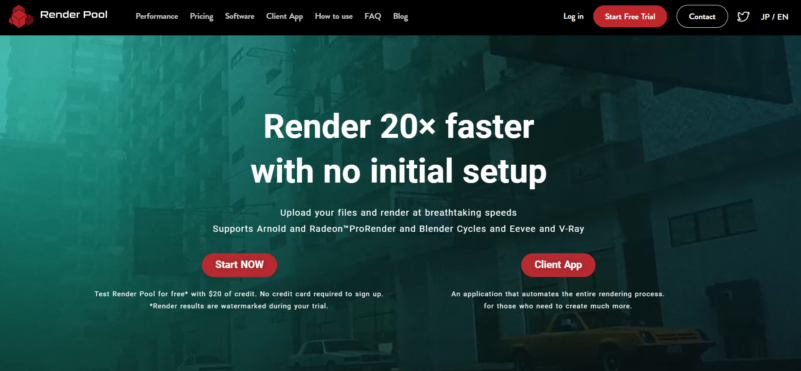
Cloud rendering services such as Render Pool provide an alternative for Blender projects. By using remote computing resources, artists can rely less on a single workstation and complete demanding rendering tasks more efficiently.
Before uploading a project, make sure the required assets are available and that the software version, simulations, and output settings are compatible with the service. Properly preparing your project can help prevent errors and make rendering more straightforward.
Start Rendering Animations in Blender
Rendering an animation in Blender becomes much easier when you understand the available settings and follow a consistent workflow. Preparing the timeline, choosing an appropriate render engine, and testing representative frames can help you avoid common problems before they affect the final output.
For longer projects, start with rendering individual images before assembling them into a video. This approach gives you more flexibility when dealing with interruptions, replacing frames, or changing the final presentation.
Whether you’re creating your first animation or working on a complex 3D production, these techniques can help you manage rendering time, maintain visual quality, and produce more reliable results. With the right preparation and workflow, you can make the most of Blender’s rendering capabilities and bring your animations to life.
Ready to spend less time rendering and more time creating? Try Render Pool and take advantage of cloud rendering to bring your Blender animations to life more efficiently.